


What is Safe Mode in Antigravity?
Safe mode in Antigravity is a set of configurations that determines how far an agent can run terminal commands, edit files, read the web, and call MCP tools before it must ask you. According to official documentation (read on 03/11/2026), the configuration consists of three layers: preset levels like Request Review, Default, Auto, Turbo in the Antigravity App; rule lists Allow, Ask, Deny using the syntax action(target); and a sandbox terminal that isolates commands at the operating system level. Antigravity CLI adds execution modes default, accept-edits, auto, plan and two flags --sandbox, --dangerously-skip-permissions. This post does not claim any mode is "absolutely safe": sandbox and rules only reduce risk, and Auto mode is still in Preview form. Product introduction and reported issues are in the post What is Antigravity?.
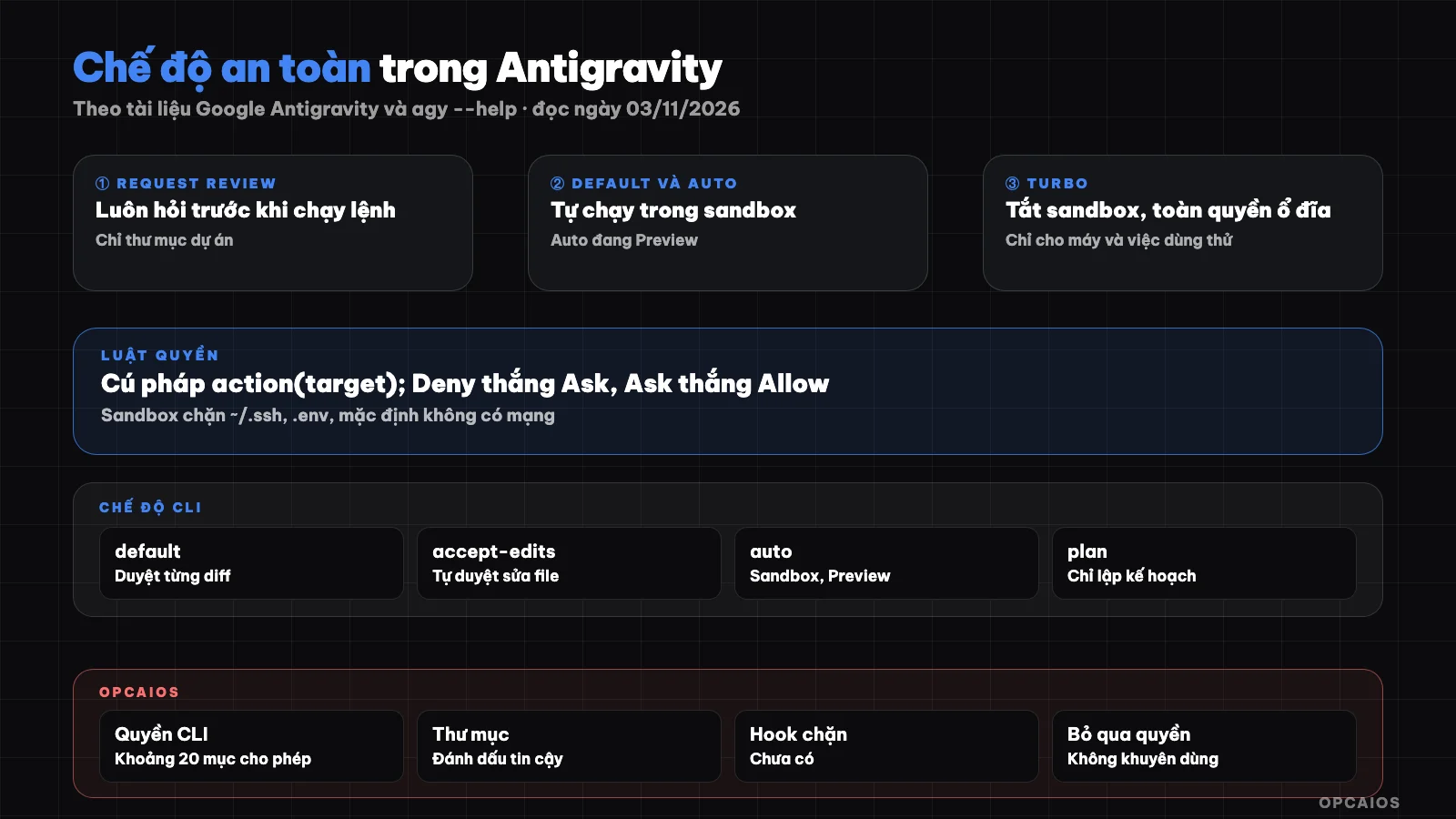
Three layers of safety: preset, Allow/Ask/Deny rules, sandbox terminal. Diagram: OPCAIOS.
How do the four permission presets in Antigravity App differ?
Permission presets are preset levels that determine how an agent runs commands, accesses files, and calls MCP; according to the /docs/permissions and /docs/agent-settings pages (read on 03/11/2026), Antigravity App has four presets:
| Preset | Sandbox | Terminal commands | File access | MCP and web |
|---|---|---|---|---|
| Request Review | Off | Always ask | Project directory only | Ask |
| Default | On | Run freely in sandbox, ask when outside | Project and temp directories | Ask |
| Auto (Preview) | On | Run freely in sandbox, outside sandbox auto-evaluated | Project and temp directories | Ask |
| Turbo | Off | Run freely, never ask | Entire disk | Allow |
Auto (Preview) has been available since version 2.23.0, not yet available for business and enterprise accounts. Change preset in Settings > General > Global Permissions, override per project in Settings > Projects, or through the permission selector in the message box. Business and enterprise accounts use the old configuration (Require Review, Proceed in Sandbox, Always Proceed; Security Preset has Turbo mode), and no old preset automatically enables sandbox.
How are command allow and block lists written?
Rule lists are a layer above the preset and always take priority over it. According to /docs/permissions (read on 03/11/2026), each sensitive action is represented as action(target) and sorted into three lists: Deny blocks immediately, Ask pauses and asks, Allow runs without asking. When rules conflict, the order is Deny over Ask over Allow; for example if you put command(*) in Ask and command(git) in Allow, all commands are still asked. Supported action types are:
read_file,write_file: by path; allowing write carries read, blocking read carries block write.read_url: by domain name; also the open network list for sandbox.execute_url: clicking, typing on a web page.command: match word prefix, orregex:.mcp: one tool or an entire MCP server.
Some shell constructs like $(...) can hide commands after a harmless prefix so must match exactly. Example from documentation: with command(git) in Allow, git status && git log runs immediately, but git log $(whoami) is still asked. Example of a cautious CLI configuration, written according to documentation syntax:
{
  "permissions": {
    "allow": ["command(git status)", "command(regex:npm run (build|lint|test))"],
    "ask": ["command(git push)", "mcp(*)"],
    "deny": ["command(sudo)", "command(rm -rf)", "write_file(.git/)"]
  }
}
In the CLI, /permissions opens the rule manager with Project, Shared, Global scopes and three tabs allowlist, denylist, asklist. When asked for permission, you can allow once, throughout the conversation, or save directly to settings.json; the last choice makes the list bloat and few people review it again.
What are allowlist and denylist in Antigravity IDE?
The /docs/ide/allowlist-denylist page (read on 03/11/2026) discusses browser URLs, not commands. Denylist is maintained by Google server-side; if the server does not respond, it defaults to blocking. Allowlist is a local file, initially only localhost, added via the Always allow button. Denylist always wins.
What Does Sandbox Terminal Block and Not Block?
Sandbox terminal is a layer that isolates shell commands from the agent using built-in operating system mechanisms, without needing a virtual machine or Docker. According to the /docs/sandbox page (read on 03/11/2026), macOS uses sandbox-exec with Seatbelt profiles, Linux uses kernel namespaces, Windows uses AppContainer and requires Windows 11 24H2 with the August 2026 update or later. Inside the sandbox, commands can write to the project directory, temporary directories, and build cache; sensitive files like ~/.ssh and .env are blocked, and anything not mounted is invisible. Network is cut by default; only domains allowed via read_url can be accessed. Sandbox cannot block three things: commands that you or a rule allow to run outside the sandbox, because then the command runs on the machine with full permissions; destructive actions right within the project directory, because the project is opened for writing; and everything when you choose Turbo, because Turbo disables the sandbox.
From CLI 1.4.4, machines that don't support sandbox are unaffected by the --sandbox flag and the auto mode does not appear.
How Do the Different Modes of Antigravity CLI Differ?
The execution mode of Antigravity CLI determines how much the agent pauses to ask before editing files or running commands. According to agy --help version 1.4.12 and the /docs/cli/modes page (read on 03/11/2026), the --mode flag accepts three values accept-edits, auto, plan; leaving it blank is the default mode:
| Mode | Edit files | Terminal commands | Suitable for |
|---|---|---|---|
| default | Show diff, wait for approval | Ask | Sensitive code, careful refactoring |
| accept-edits | Auto-approve within project | Still ask per policy | Quick iteration on trusted code |
| auto (Preview) | Auto-approve within project | Run in sandbox, outside sandbox evaluated | Long work, build commands, repeated tests |
| plan | Read-only, plan first | No changes until you approve | Unfamiliar architecture, many file changes |
Press Shift + Tab to switch modes within a session; fix it with agentMode in settings.json or /config. The auto mode has been available since version 1.3.5 on macOS and Linux, and 1.4.4 on Windows, requires sandbox, and is not yet available for business and enterprise accounts. When accept-edits is enabled, child agents in the session also inherit this setting.
Below the mode is the toolPermission key with four values: request-review (default), proceed-in-sandbox, strict (ask before every non-read action, overrides auto), and always-proceed (run tools without asking, overrides auto). The allowNonWorkspaceAccess key is disabled by default, keeping the agent within the project directory.
agy --mode=plan
agy --mode=accept-edits
agy --sandbox
How Dangerous Is the --dangerously-skip-permissions Flag?
The --dangerously-skip-permissions flag enables the always-proceed level: according to agy --help (version 1.4.12), the flag auto-approves all tool permission requests without asking. The /docs/cli/headless page (read on 03/11/2026) warns that this flag approves both file writes and command runs, and recommends using the permissions.allow rule with scope unless you completely trust the prompts and environment. The /docs/settings page adds an exception: always-proceed still respects Ask and Deny rules. This means the Deny list is the final barrier when this flag is enabled.
In non-interactive mode (agy -p), tools that need approval are softly rejected: the run still continues, exit code 0, message written to stderr; so grant only the few necessary commands in advance rather than enabling the flag. Compare with other tools: approval mode and sandbox in Codex and plan mode and permission mode in Claude Code.
Which Mode Should I Choose for Each Type of Work?
Choose the safe mode based on the worst consequence if the agent does something wrong, not based on convenience level. Our suggestions, not Google's official recommendations:
- Reading unfamiliar code, downloaded repos, client projects: use plan or Request Review, don't open network, don't allow access outside the project.
- Writing features in a repo with clean Git history: Default in App or accept-edits in CLI, plus Allow rules for build and test commands.
- Long repetitive work like fixing test failures in bulk: Auto (Preview) if your account and machine support it, plus Deny for
sudo, recursive deletion,git push. - Non-interactive tasks run on schedule: grant Allow at minimum, don't use
--dangerously-skip-permissionson machines with real data. - Turbo: only in virtual machines or test machines that can be wiped, with backups.
Add these habits: commit before major work, Deny for .git/, review the Allow list every month. See also security when using AI to write code.
OPCAIOS Experience
I use Antigravity as the orchestration agent on my main Mac, along with Claude Code and Codex. Checked on 03/11/2026, at the conceptual level:
- The CLI has an allowlist of roughly 20 items and several working directories marked as trusted. We do not publish the list contents.
- There are hooks at points before and after agents and before and after tools, but only to report session status to a terminal management tool. We don't have command-blocking hooks yet, so the current blocking layer relies on rules and modes.
- An operational rule matters as much as any flag: website code can only be edited and deployed from a single machine to avoid drift. We once encountered over 1,500 files treated as different just because of line ending styles when deploying from a Windows machine. No permission mode can block this kind of error; only process can.
We haven't measured the rate of blocked commands or time saved. Running multiple agents in parallel, see multiple AI sessions editing one project.
Frequently Asked Questions
Is Turbo mode still in Antigravity?
Yes, according to documentation read on 03/11/2026: Turbo is one of four permission presets in Antigravity App, described as running all commands unrestricted, disabling sandbox, full read-write disk access; business and enterprise accounts have Turbo mode in the old settings. Since Turbo bypasses sandbox, use it only in test environments with backups, never on machines holding customer data.
How does Auto differ from Turbo?
Auto (Preview) still enables sandbox: commands running in sandbox execute without asking, while commands needing to run outside sandbox are auto-evaluated by the system—safe, reversible commands run, risky commands still ask. Turbo disables sandbox and asks nothing. Auto is in the App from version 2.23.0, in the CLI from 1.3.5 on macOS and Linux and 1.4.4 on Windows, and not yet available for business and enterprise accounts. The "auto-evaluation" mechanism is Google's; we haven't verified its accuracy.
Does an Allow rule beat a Deny rule?
No. Priority order is always Deny over Ask over Allow, and these rules sit above any preset or mode. For example, if command(*) is in Ask, all commands still get asked even if command(git) is in Allow. Even at the always-proceed level triggered by the --dangerously-skip-permissions flag, the setup documentation says Ask and Deny rules are still respected. So put absolutely forbidden commands in Deny; don't rely only on not permitting them.
Does sandbox need Docker?
No. The /docs/sandbox documentation says sandbox builds on the OS's built-in mechanisms: sandbox-exec with Seatbelt profiles on macOS, kernel namespaces on Linux, AppContainer on Windows 11 24H2 with August 2026 updates or later, so no virtual machine, no startup time lost. On CLI, enable with --sandbox, key enableTerminalSandbox, or /config. Commands needing Docker usually won't run in sandbox; the documentation suggests permitting that specific command with a command(...) rule.
What mode should someone without coding knowledge start with?
Start with the CLI default mode or the Default preset in the App, read each permission request before clicking allow, and use plan for larger tasks to see the plan before the agent edits files. Don't choose "always allow" when you don't understand a command, don't enable Turbo on machines with real data. Detailed safe process is in programming agent for people without coding knowledge; for hands-on guidance, see OPCAIOS's AI application training course.
Source: Google Antigravity documentation at antigravity.google/docs: /permissions, /sandbox, /ide/allowlist-denylist, /cli/modes, /cli/commands/permissions, /agent-settings, /settings, /cli/headless (read 03/11/2026); flags and modes checked against agy --help version 1.4.12 same date. Not verified: accuracy of command auto-evaluation in Auto mode, behavior on business and enterprise accounts; mode selection suggestions are our views, not Google recommendations. Experience is OPCAIOS's.
Translated from Vietnamese with AI. Read the original.
Want to apply this in your business?
Book a free 30-minute call (Vietnam time, in English or Vietnamese).