

What is Deep Research in Gemini?
Deep Research in Gemini is a mode in the Gemini app that takes a research question, automatically plans multiple steps, finds and reads many websites (plus your Gmail, Drive, or files if you choose), then writes it into a cited report in a few minutes. According to Google's help page (read 04/11/2026), a report usually takes around 5 to 10 minutes. This post does not promise the report is accurate or complete: speed is the strength, while reliability depends on sources, and citations may not match the content. The post goes through how it works, packages and limits, exporting to Google Docs and audio, risks, a 5-step verification process, and when to use Gemini Notebook (formerly NotebookLM). General introduction is in the post What is Gemini?.
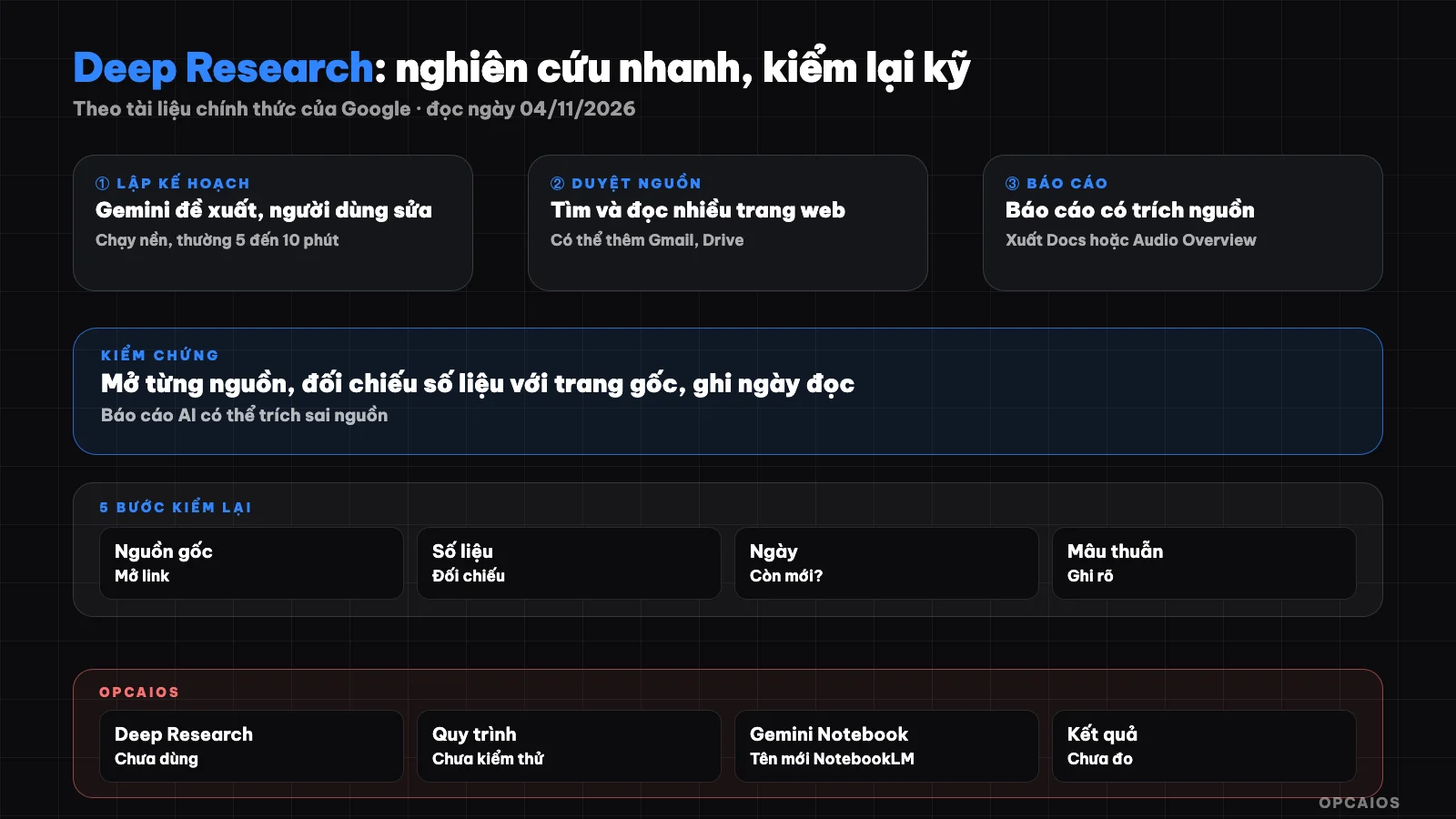
Gemini's Deep Research: plan, browse sources, write report, then user verifies. Diagram: OPCAIOS.
How does Gemini's Deep Research work?
Gemini's Deep Research works in four stages: planning, finding and reading sources, reasoning, writing the report. According to the Deep Research introduction page on gemini.google (read 04/11/2026), the details are as follows:
- Planning: Gemini turns the question into a multi-step research plan. You see and edit the plan before running it.
- Finding and reading: Gemini searches and reads websites; if you choose, it also reads your Gmail, Drive, Chat and uploaded files. Some steps run in parallel, some must run sequentially.
- Reasoning: after each step, Gemini considers what it found, shows thinking progress and the next step.
- Writing the report: Gemini synthesizes into a structured report, checks for contradictions and revises the draft.
The research runs asynchronously: you leave the app or turn off your machine, it keeps running and notifies you when done. Google itself claims Deep Research reads "hundreds" of pages and is better than the old version; that's a provider statement, we haven't verified it.
How to run a Deep Research report on desktop
Running Deep Research on desktop takes seven steps, according to the article "Use Deep Research in Gemini Apps" (read 04/11/2026):
- Open gemini.google.com.
- Select Add Files then Deep Research.
- Optional: upload files or images with your question.
- Optional: select sources in Sources. Uncheck Google Search if you only want research from your sources.
- Enter your question and send.
- Read the plan, click Edit plan if you need to change it.
- Click Start research, when the report is done click Open.
Step 6 is the most important: the plan decides what Deep Research will find, so add scope (Vietnam market, recent years) and priority source types (official pages, government documents). Old reports can only be found again if you turn on Keep Activity.
Which package has Deep Research, what are the limits?
Deep Research is in Gemini's free package, but paid packages have higher limits and a better model. According to the Deep Research help page (read 04/11/2026), users must be 18 or older, logged in. Everyone gets Thinking; Google AI Pro and Ultra users can choose Pro for higher quality reports. Limits apply to the number of requests per day and concurrent running requests; Gemini shows remaining uses in the day. Summary table from Vietnam package page and usage limits page (read same day):
| Package | Price on Vietnam page | Common usage level |
|---|---|---|
| Free | 0 đ/month | Standard level |
| Google AI Plus | 132,000 đ/month | 2x standard level |
| Google AI Pro | 489,000 đ/month | 4x standard level |
| Google AI Ultra | from 2,250,000 đ/month | 5x or 20x Pro depending on package |
No page states the number of Deep Research reports per day for each package, so we don't list the number. Price may change and may not include tax. The limits page also notes Deep Research may be temporarily unavailable at peak times, users without a package are limited first. See also Gemini free and paid.
Exporting Reports to Google Docs and Audio Versions
Deep Research reports can be exported to Google Docs and converted to audio format through Audio Overview, according to the help page read on 04/11/2026. The report opens in a Canvas frame, where I have three options:
- Share & export: share the Canvas, export to Docs, or copy the report content.
- Create then Audio Overview: create an audio version in a two-person conversation format. The release notes from 18/03/2025 note that Audio Overview uses the same technology as NotebookLM, now called Gemini Notebook.
- Create other content: turn the report into interactive content or quizzes in Canvas.
With Google AI Ultra, reports can include charts, diagrams, and interactive simulations, but these are disabled when I select Gmail or Drive as sources. Exporting to Docs is convenient for verification since I can easily highlight and annotate each claim; audio versions are harder to spot errors in compared to reading.
What are the risks with Deep Research?
Deep Research has five main risks, and both the introduction and help pages advise me to double-check the answers. The list below is OPCAIOS's analysis based on how the tool works, not measured data:
- Low-quality sources: the report is based on websites found. Ads, aggregator pages that copy content, and forums can be cited as sources on equal footing with official documents.
- Mismatched citations: a sentence has a reference number but the cited page doesn't actually say that, or only says part of it.
- Outdated data: prices, laws, and market share may come from articles from years ago without the report clearly stating the year.
- Confident tone: the report is long, well-structured, and reads very convincingly even when the underlying information is weak.
- Unnecessary data exposure: selecting Gmail or Drive as sources means Gemini reads my emails and files; I only enable this when truly needed, see 5 data security rules when using AI.
For legal, tax, and medical content, the report is only a starting point, not advice.
Process for Verifying Deep Research Reports in 5 Steps
Verifying a Deep Research report means checking each important claim against its source before using it. The 5-step process OPCAIOS proposes has not been timed in real use:
- Filter important claims: export to Docs, highlight the sentences I plan to use for decision-making: data, prices, regulations, competitor names. Usually just 5 to 15 sentences, I don't need to check the entire report.
- Open each citation: for each highlighted sentence, click the source and find the exact passage on the original page. If I can't find it, I mark "doesn't match".
- Score the source: note the source type: official (government agency, manufacturer website), news, blog, forum. If a claim relies only on blog or forum sources, I need a second source.
- Check the date: note the publication date of the source. If prices and policies are older than 12 months, I find the new version on the official page.
- Write conclusion: at the end of the document I write sections for "Verified", "Not verified", "Removed", with the verification date. Only the "Verified" section goes into reports for clients or posts.
Hypothetical example: an online cosmetics store owner asks Deep Research to compare seller fees across platforms; the report comes out in minutes, but each fee level must be checked against the policy page of each platform. For regular competitor tracking, Firecrawl and n8n work better.
How is Deep Research different from Gemini Notebook (NotebookLM)?
Deep Research in Gemini finds new sources on the web and writes a report, while Gemini Notebook answers based on a set of sources I've added to the notebook. Gemini Notebook is the new name for NotebookLM as of 16/07/2026 according to Google's blog, and the two tools are becoming more similar: notebooks can now open within the Gemini app, and Deep Research in Gemini accepts notebooks as sources. According to Google's blog from 13/11/2025, NotebookLM (when it still had the old name) also had its own Deep Research mode under Sources, where I select Web then choose Fast Research or Deep Research, and add the report along with sources to the notebook.
| Criteria | Deep Research in Gemini | Gemini Notebook (NotebookLM) |
|---|---|---|
| Starting point | A question | A set of sources I choose |
| Sources | Web, Gmail, Drive, files, notebook | Documents in the notebook, can add from web |
| Output | Report in Canvas, export to Docs | Answers, summaries, Audio Overview from sources |
| Best for | Exploring a new topic | Digging deeper into curated documents |
Sensible way to combine them: use Deep Research to explore, keep the verified sources from step 3, add them to a notebook for follow-up questions. For details see What is NotebookLM?, an article written under the old name.
OPCAIOS's Experience
OPCAIOS has not used Gemini's Deep Research and has not checked this feature on my account, so this post has no comments on report quality. What we do is relevant to how we handle AI-generated content: automatically created SEO articles on opcaios.org all go through manual review before publishing, and blog posts are sourced with reading date and an "unverified" section at the end, like the source line of this post. Our internal GEO tool checks if robots.txt blocks Google-Extended; opcaios.org's robots.txt currently does not block it. According to Google, Google-Extended decides whether content is used for Gemini or not and does not affect Google Search ranking, see What are SEO and GEO.
Frequently Asked Questions
Is Gemini's Deep Research free?
Yes, for people 18 and older who are logged into Gemini. According to the help page read on 04/11/2026, all users can use Thinking for Deep Research, while Google AI Pro and Ultra users can choose Pro and have higher report limits. Google does not publish the number of reports per day for each plan on the pages we read; Gemini shows remaining daily uses. At peak times, the feature may be temporarily unavailable, and users without a plan are limited first.
How long does a Deep Research report take?
According to the help page, usually between 5 to 10 minutes, complex topics take longer. You don't need to wait: leave the conversation or turn off your device, research keeps running and Gemini will let you know when it's done. The time to add is the verification part afterward, because that's the step that determines whether the report can be used or not.
Does Deep Research read my Gmail and Google Drive?
Only if you choose. By default the source is Google Search. Gmail and Drive only appear in the Sources section when Google Workspace is connected to Gemini, and you can uncheck Google Search to only research within your files. With customer data, contracts or finances, only turn on that source when really needed and read Gemini's privacy policy first.
Are citations in a Deep Research report trustworthy?
Citations help you verify faster, but they don't prove the claim is right. A citation may point to a page that only says part of the idea, an old page, or a low-quality page. Google also recommends checking the answer again. For each claim you plan to use, open the source, find the exact passage, note the source type and date, like the 5-step process in the post.
Should I use Deep Research or Gemini Notebook for customer research?
Use Deep Research when starting from zero and need a broad survey: market, competitors, trends. Use Gemini Notebook (old name NotebookLM) when you already have curated documents like customer interview notes, surveys, checked reports, and want to ask questions tied closely to those documents. A neat way is to run Deep Research, keep verified sources, put them in the notebook. To learn the AI research and verification process for small business, see OPCAIOS's AI application training course.
Source: gemini.google/overview/deep-research; Gemini help: Use Deep Research in Gemini Apps, Gemini Apps usage limits; gemini.google/subscriptions page (Vietnam version); release notes gemini.google/release-notes; Google blog on Deep Research in NotebookLM (13/11/2025) and Gemini Notebook (16/07/2026) (read on 04/11/2026). Unverified: reports per day by plan, claim of reading "hundreds" of pages, price includes tax or not, time to complete the 5-step process. Experience is OPCAIOS's.
Translated from Vietnamese with AI. Read the original.
Want to apply this in your business?
Book a free 30-minute call (Vietnam time, in English or Vietnamese).